Question behaviours
How questions behave
The following question behaviours are available when creating a quiz (also when previewing questions):
Deferred feedback
Students must enter an answer to each question and then submit the
entire quiz before anything is graded or they get any feedback.
Adaptive mode and Adaptive mode (no penalties)
Allows students to have multiple attempts at the question before moving
on to the next question. This behaviour requires that the "Whether
correct" box is ticked under "During the attempt" in the "Review
options" section, at a minimum.
Manual grading (disabled by default)
This is disabled by default because of potential confusion when
selecting a question behaviour. If it is enabled and you select manual
grading here, then learners will not get a result until you have
manually graded all their questions. Think very carefully about this!
Interactive with multiple tries
Used for allowing multiple attempts on the same question (perhaps with a
grade penalty). Students answer the question and click the 'Check'
button. If the answer is wrong, the student can click the 'Try again'
button to try a new response. Importantly, the question definition must
contain hints that will be shown after each incorrect attempt, though
the hint text can be as minimal as an HTML non-breaking space. Once the
student has got the question right, they can no longer change their
response. Once the student has got the question wrong too many times,
they are just graded wrong (or partially correct) and get shown the
feedback. Unless 'Allow redo within an attempt' was enabled in the
'Question behaviour'
settings of the quiz, they can no longer change their answer. There can
be specific feedback after each attempt the student makes, in addition
to overall feedback about incorrect or correct answers and answer
choices. The number of tries the student gets is the number of hints in
the question definition plus one, with a minimum of three.
Immediate feedback
Similar to interactive mode in that the student can submit their
response immediately during the quiz attempt, and get it graded.
However, they can only submit one response, they cannot change it later.
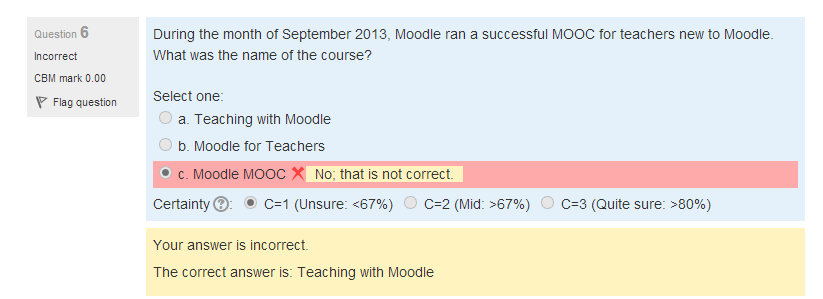
Deferred feedback or Immediate feedback with Certainty-based marking (CBM)
With CBM, the student does not only answer the question, but they also
indicate how sure they are they got the question right. The grading is
adjusted by the choice of certainty so that students have to reflect
honestly on their own level of knowledge in order to get the best mark.
Conditional questions
If using the Interactive with multiple tries or Immediate Feedback
behaviour and with the navigation method set to 'Free', it is possible
to make the display of a question dependent on a previous question being
answered first.
The question editing page will display padlock icons to the right of each question.
Certainty-based marking
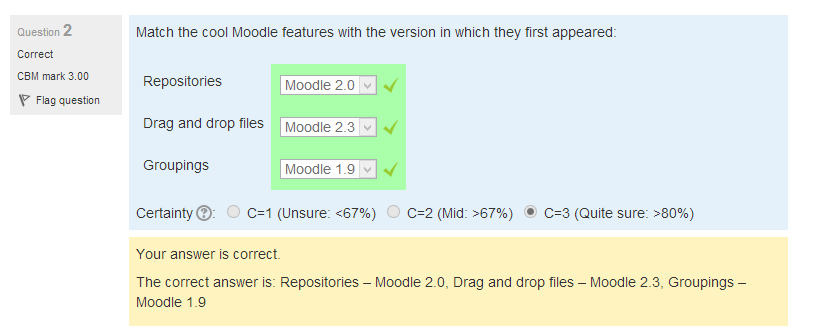
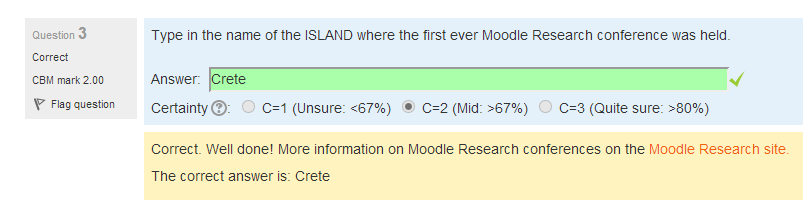
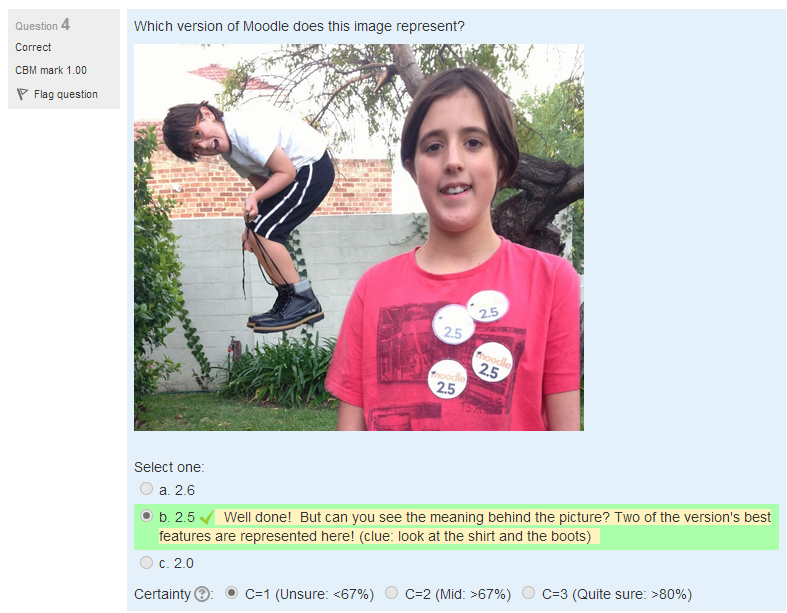
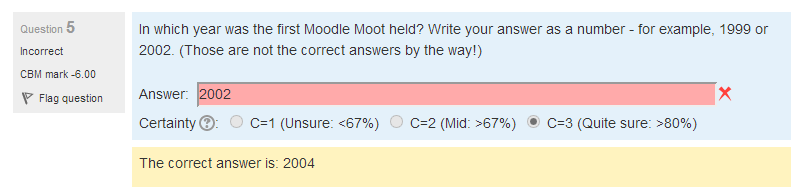
When a student answers a question they also have to state how sure they are of the answer: not very (less than 67%); fairly (more than 67%) or very (more than 80%). Their grading is then adjusted according to how certain they are, which means that for example if they answered correctly but were only guessing, their mark is adjusted from 1 to 0.33. If they answered wrongly but were very sure, their mark is adjusted from 0 to -2.
For detailed information on how CBM works and how students can benefit from it, see Using certainty-based marking.
| 
| 
| 
| 
|
Managing question behaviours
An administrator can manage question behaviours available across the site in Administration > Site administration > Plugins > Question behaviours > Manage question behaviours.
Deferred feedback with explanation
Deferred feedback with explanation is an additional question behaviour, available for Moodle 2.6+, that is just like deferred feedback, but with an additional input box where students can give a reason why they gave the answer they did. No attempt is made to automatically grade the explanation, nor is it required.
- It may be used in various ways, for example:
- The teacher may want to manually edit the grades where the student gave a wrong answer, to give partial credit if the student used the right method or approach.
- The student might want to explain their thinking, so that later when the results and feedback are revealed, they are reminded of what they were thinking at the time, and so can reflect more deeply.
- You can use Language customization to change the default text string "Explain your reasons" in the file qbehaviour_deferredfeedbackexplain.php to a more specific text such as "Enter justifications below if you want partial credit in numerical problems by showing your steps, ignore otherwise." as described in https://moodle.org/mod/forum/discuss.php?d=275752
Interactive with explanation
qbehaviour interactiveexplain is an additional question behaviour, available for Moodle 3.x, that is based heavily on Tim Hunt's deferred feedback with explanation question behaviour. This behaviour is like the interactive with multiple attempts behaviour, but with an additional text box where students can give a reason why they gave the answer they did. No attempt is made to automatically grade the explanation, nor is it required. The code can be found at https://github.com/marcusgreen/moodle-qbehaviour_interactiveexplain
See also
- LAPT: UCL home of Certainty-Based Marking
- CBM too harsh? forum discussion
- School demo example of a quiz with CBM Log into with username "parent".
- Certainty Based Marking in Moodle blog post by Isabelle Langeveld
- Styles of interactive computer marked assessments from the Open University
- This forum thread about adding an 'all or nothing' behaviour for adaptive and deferred feedback for questions in a quiz.